

PeaZip is an open-source file archiver with GTK and Qt interfaces, with support for all the major archives out there, including gzip, 7z, bzip2, zip, and arc.
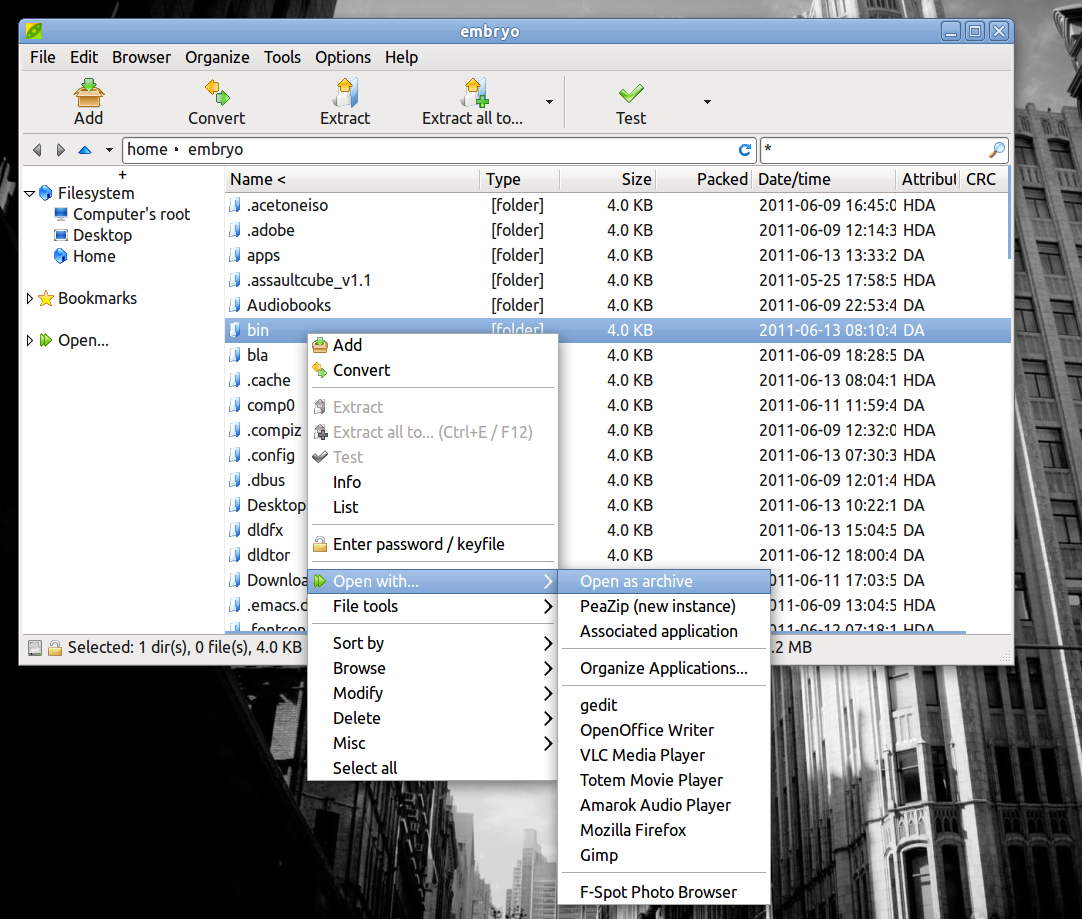
Here are some of the main features provided by PeaZip, according to the official website:
- easy to use GUI, powerful integration with scripts
- portable version for running it from removable devices
- it can work with all the popular archive formats
- tools to extract, compress, convert, encrypt, secure delete and save backup scripts
- fast, with a high compression ratio, stable and secure
- comes with packages for various distributions, also generic Linux packages
- it has both GTK and Qt interfaces (GTK interface is the recommended one)
To install it in Ubuntu 11.04, download the DEB package from
here then open a terminal, make sure the current working directory is the one where you saved the .deb file, and type in the following command:
sudo dpkg -i peazip_3.8.LINUX.GTK2-2_all.deb
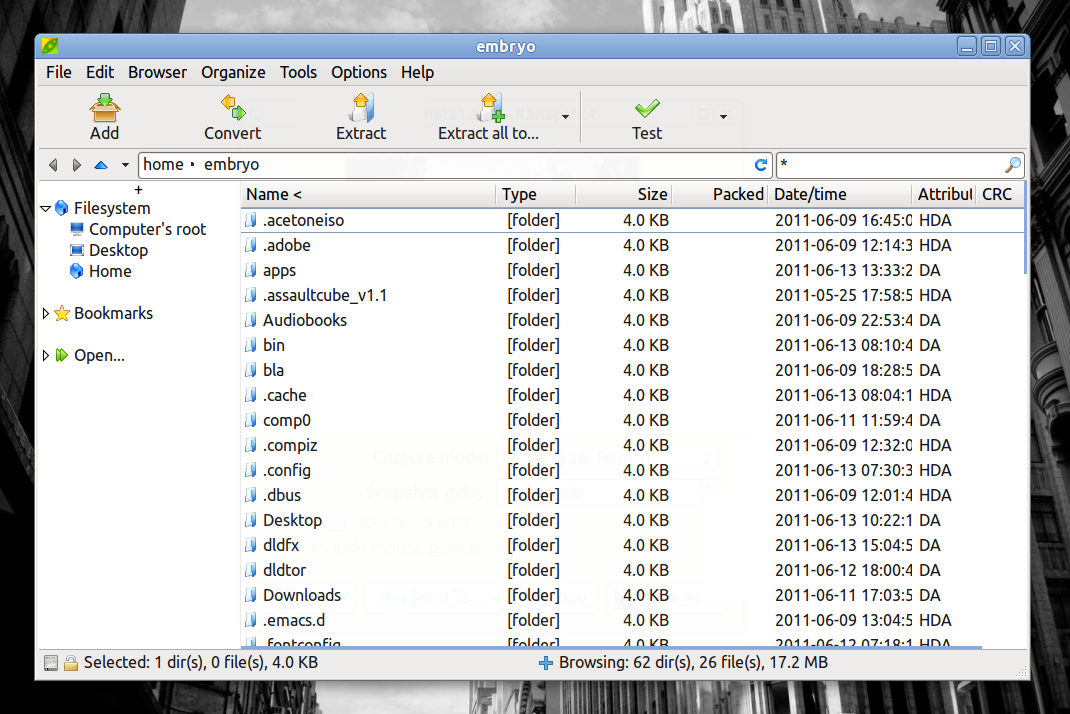
To run it type in the terminal peazip or press Alt+F2 and type peazip in the run box. Here’s how it looks like:
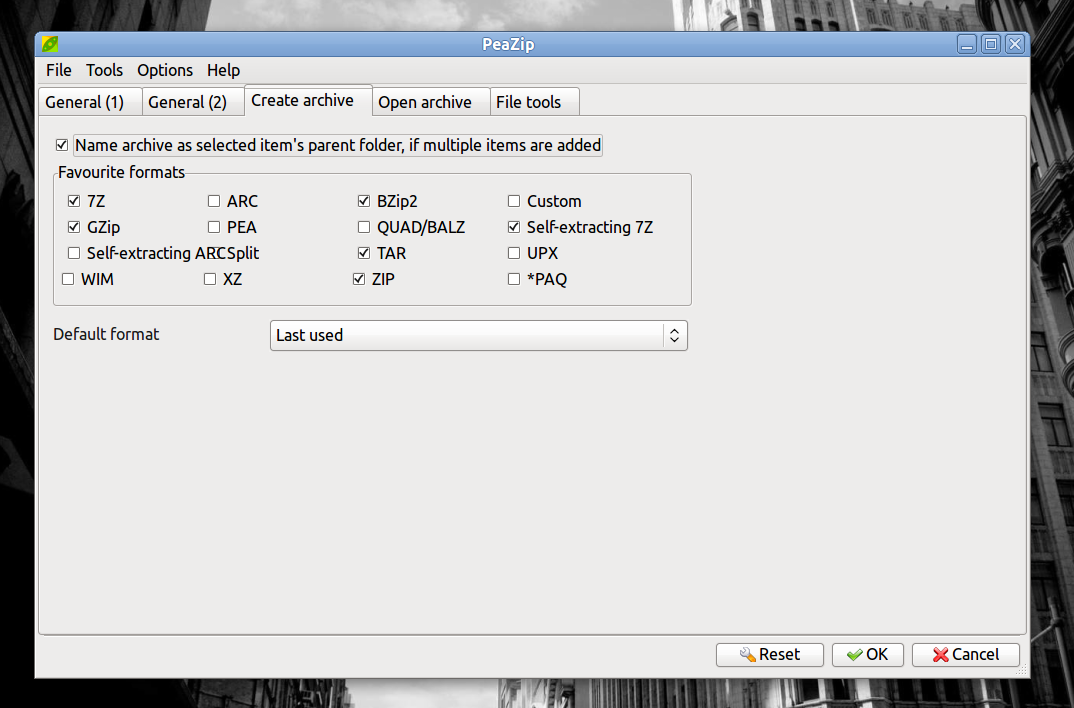
And the configuration window: