Note: If you are new to the Linux shell, I recommend reading the introduction to Linux command-line first. It explains a bit about what is, how to start and how to use a shell.
On most systems, the shell profile file includes certain aliases to be available by default. These aliases are usually specified in the $HOME/.bashrc file, where $HOME is your home directory, e.g. /home/your_username, and .bashrc is a hidden configuration file which is read and executed by Bash every session. To see what aliases you have defined on your system, open a terminal and use the alias command. Here's a possible output:
alias l='ls -CF'
alias la='ls -A'
alias ll='ls -lF'
alias ls='ls --color=auto'
So how do you create aliases? It's pretty simple, you add them in a text file which is read by Bash. In this tutorial, we will add aliases to the ~/.bashrc file, which should already exist and is read by default by the shell. Notice that ~ means your home directory (e.g. /home/username) and also that .bashrc is a hidden directory, so you will have to enable viewing of hidden files in your file manager if you decide to edit it with a graphical application. We will add aliases at the end of this file, and since it's a plain text file, a simple text editor should suffice (like Gedit or Nano). For this example I will use Nano:
nano ~/.bashrc
Take a look at the screenshot below to see several examples of aliases:
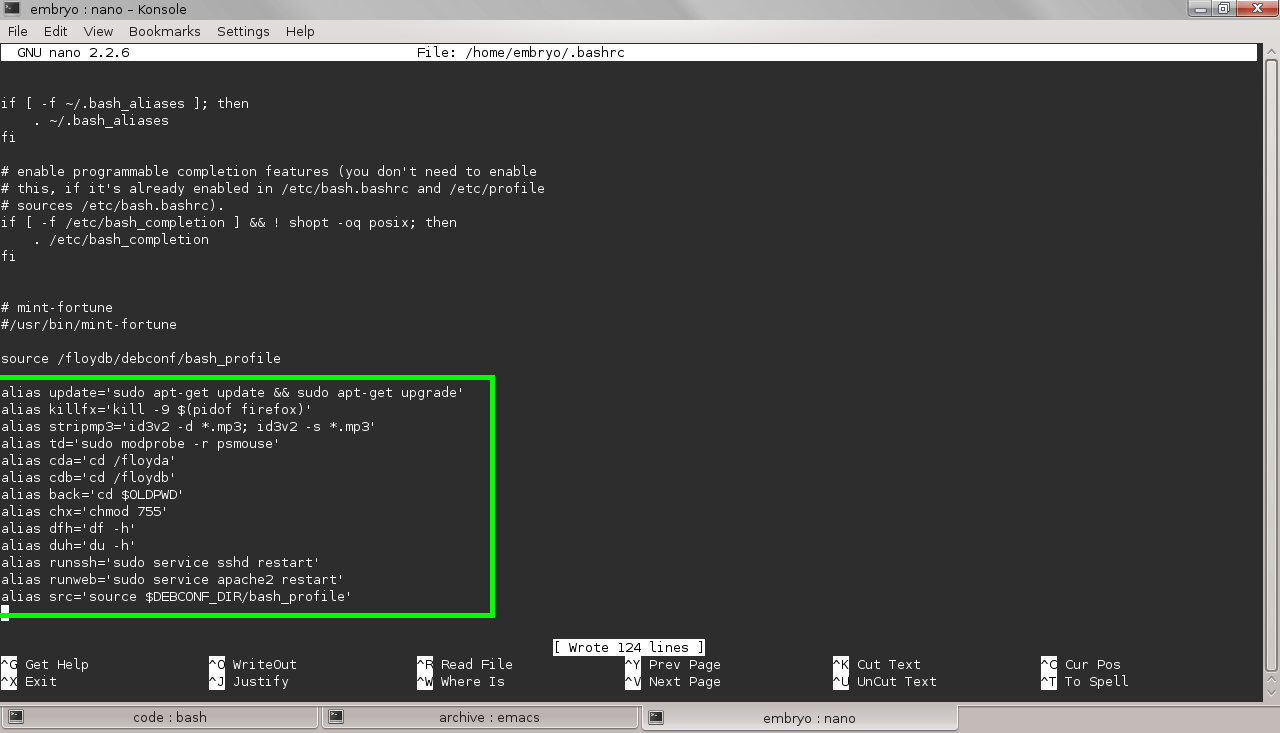
Now let's explain them.
alias update='sudo apt-get update && sudo apt-get upgrade'
alias killfx='kill -9 $(pidof firefox)'
alias stripmp3='id3v2 -d *.mp3; id3v2 -s *.mp3'
alias dt='sudo modprobe -r psmouse' # disable touchpad
alias cda='cd /floyda'
alias cdb='cd /floydb'
alias back='cd $OLDPWD'
alias chx='chmod 755'
alias dfh='df -h'
alias duh='du -h'
alias src='source $DEBCONF_DIR/bash_profile'
The last one tells the shell to read (for that it uses source) the file $DEBCONF_DIR/bash_profile. This is just an example which I use on my computer, you may want to use here alias src='source ~/.bashrc'. This is useful to source again (read below) your ~/.bashrc file whenever you modify it.
Keep in mind that these are just examples, you can create your own aliases to virtually any commands. After you're done, save the file (Ctrl+O in Nano followed by Ctrl+X to quit it) and proceed to the next step.
OK, I Added the Aliases, Now What?
Now we have to make Bash aware of the newly added aliases. For this, we need to source the .bashrc file:
source ~/.bashrc