
Ubuntu/Debian/Mint news and tutorials | Linux stuff
feed.png
Quick Tip #1
Disable Overlay Scrollbars in GNOME
For Ubuntu 12.10, open a terminal and type the following command:
gsettings set com.canonical.desktop.interface scrollbar-mode normal
Changes should occur instantly. The overlay scrollbars should now be replaced with normal scrollbars.

For Ubuntu 12.04, use the following command:
gsettings set org.gnome.desktop.interface ubuntu-overlay-scrollbars false
Log out and log back in for changes to occur.
Quick Tip #2
Mount an ISO Image from Command-Line
sudo mount -o loop /path/to/image.iso /path/to/empty/dir
Notice that /path/to/empty/dir must exist and should be empty.
Quick Tip #3
Find Out Current GNOME Version
For GNOME:
gnome-shell --version
For the Compiz window manager, use:
compiz --version

I made this review after a fresh install of Mint 14 Xfce ‘Nadia’ from the ISO DVD and a full sudo apt-get update && sudo apt-get dist-upgrade.

Here’s what I ended up with:

  • Linux Kernel: 3.5.0-21
  • Desktop Environment: Xfce 4.10
  • File Manager: Thunar 1.4.0
  • Terminal: Xfce Terminal 0.4.8
  • Web Browser: Firefox 17.0.1
  • Office Suite: LibreOffice 3.6.2
  • Music Player: Banshee 2.6.0
  • Chat Client: Pidgin 2.10.6

In addition to these, Mint 14 Xfce also comes with Totem movie player, GIMP image editor, XChat IRC client, gedit text editor, screenshot tool, gThumb image viewer, a document viewer, Transmission BitTorrent client, catfish find tool, a sound recorder, Xfburn burner.
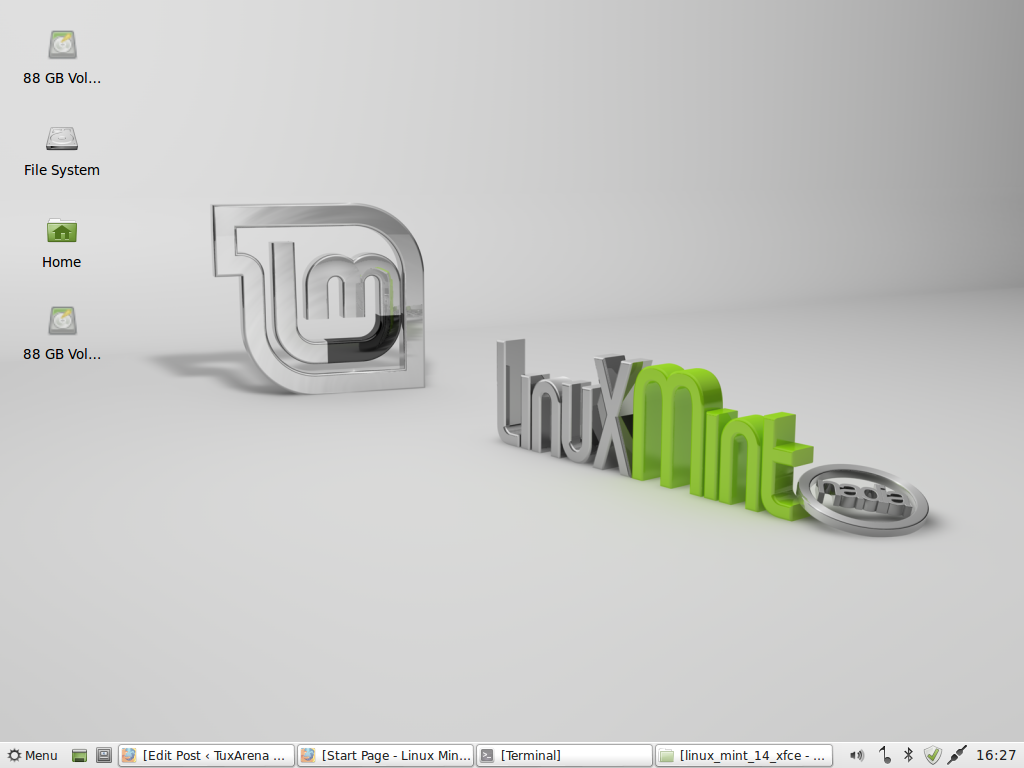
mint14_desktop

Full article

Sponsors
Advertise on TuxArena
Online Readers