
Ubuntu/Debian/Mint news and tutorials | Linux stuff
feed.png
Quick Tip #1
Disable Overlay Scrollbars in GNOME
For Ubuntu 12.10, open a terminal and type the following command:
gsettings set com.canonical.desktop.interface scrollbar-mode normal
Changes should occur instantly. The overlay scrollbars should now be replaced with normal scrollbars.

For Ubuntu 12.04, use the following command:
gsettings set org.gnome.desktop.interface ubuntu-overlay-scrollbars false
Log out and log back in for changes to occur.
Quick Tip #2
Mount an ISO Image from Command-Line
sudo mount -o loop /path/to/image.iso /path/to/empty/dir
Notice that /path/to/empty/dir must exist and should be empty.
Quick Tip #3
Find Out Current GNOME Version
For GNOME:
gnome-shell --version
For the Compiz window manager, use:
compiz --version

Dedicated applications

Shutter
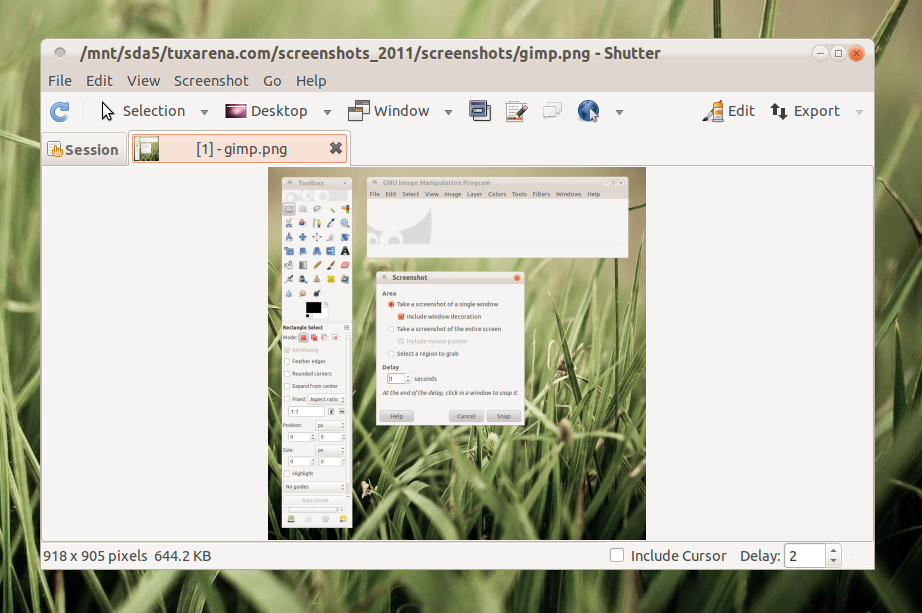
This is a very powerful and feature-rich tool for taking screenshots. Written in GTK and blending well in GNOME, Shutter offers just about anything you would ask from such an application: timer, screenshots of whole screen, windows, widgets, a quick and easy-to-use editor for fast retouching or pointing out certain aspects of the image, support for plugins, exporting/importing and saving to PNG, JPG or BMP. Definitely a winner in my opinion.
Full article

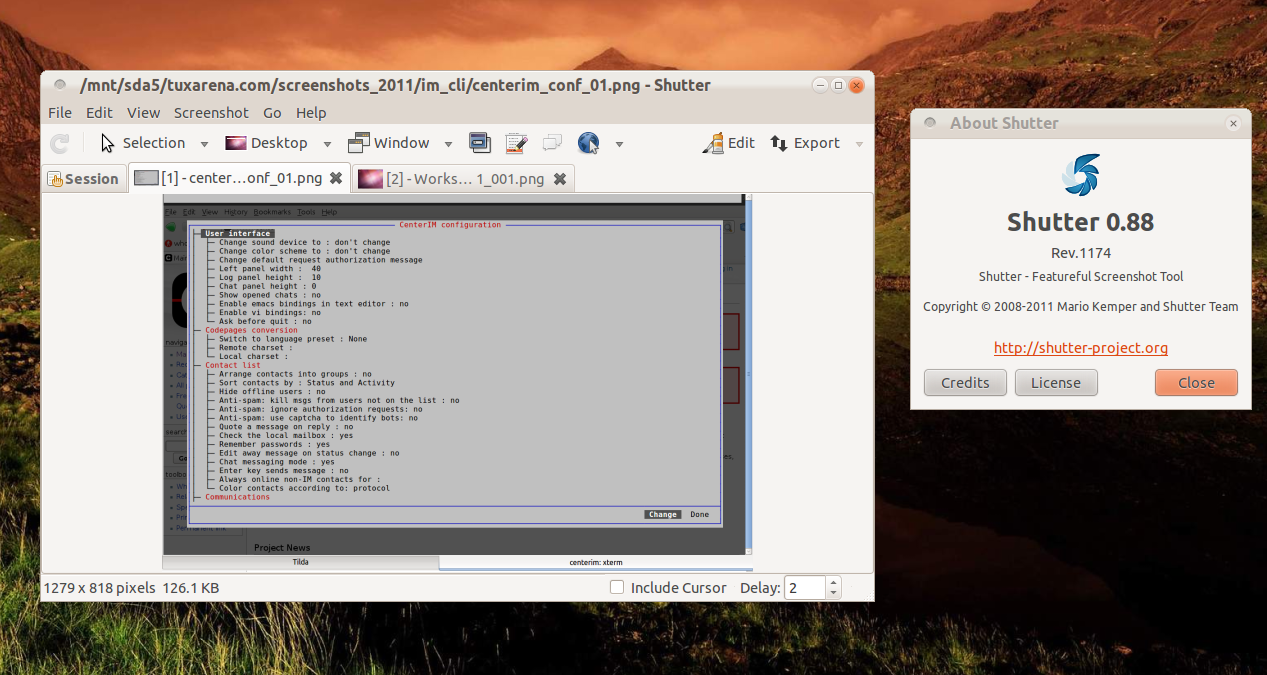
Shutter 0.88 has recently been released with several new features, looking even better than before.

For those of you who didn’t hear about it before, it’s probably time you have a look at it. Shutter is probably the most powerful screenshot-taking application available for GNOME, including countless features and several useful tools to take screenshots and manipulate them in any way possible.

Full article

Sponsors
Advertise on TuxArena
Online Readers