





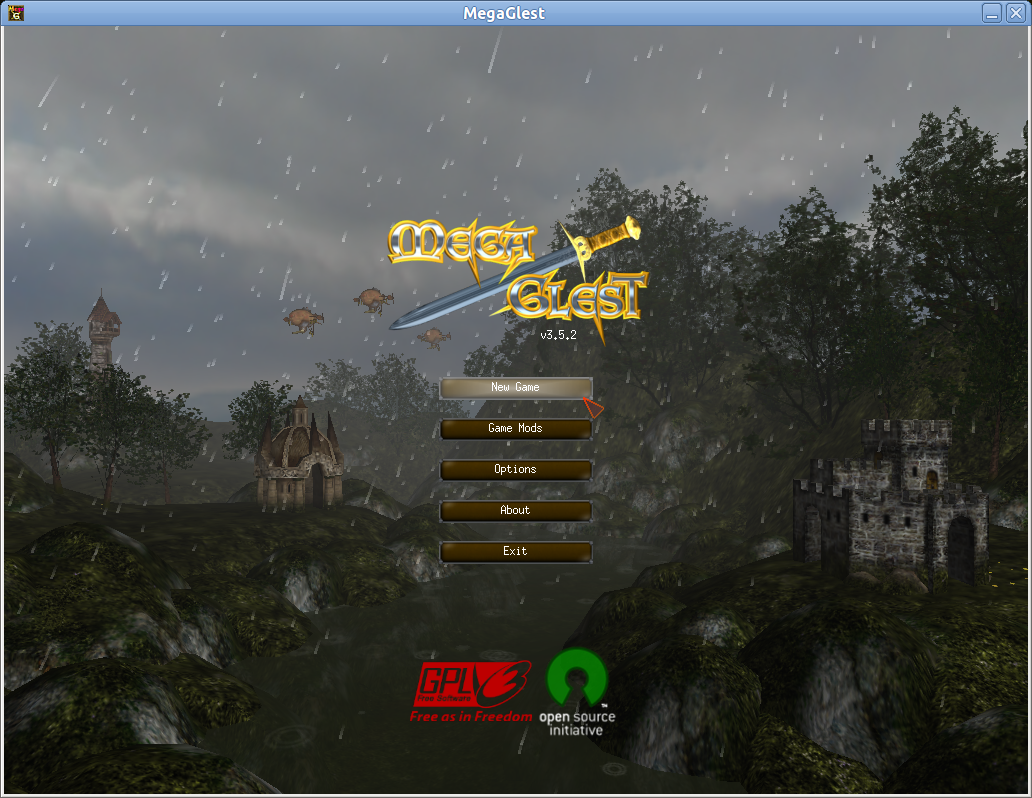
After Warzone 2100, I decided to take a look at MegaGlest too, another 3D open-source strategy game.
MegaGlest is based upon the original Glest engine, but offers a lot of new features and capabilities, extending the original Glest (which is rather poor in options in my opinion) to a whole new game, including support for graphical resolutions, new factions, tech trees, tilesets and maps. It is available for Linux and Windows and it’s licensed under the GPL v3, while the game data is licensed under another permissive license, Creative Commons Attribution-ShareAlike 3.0 Unported.
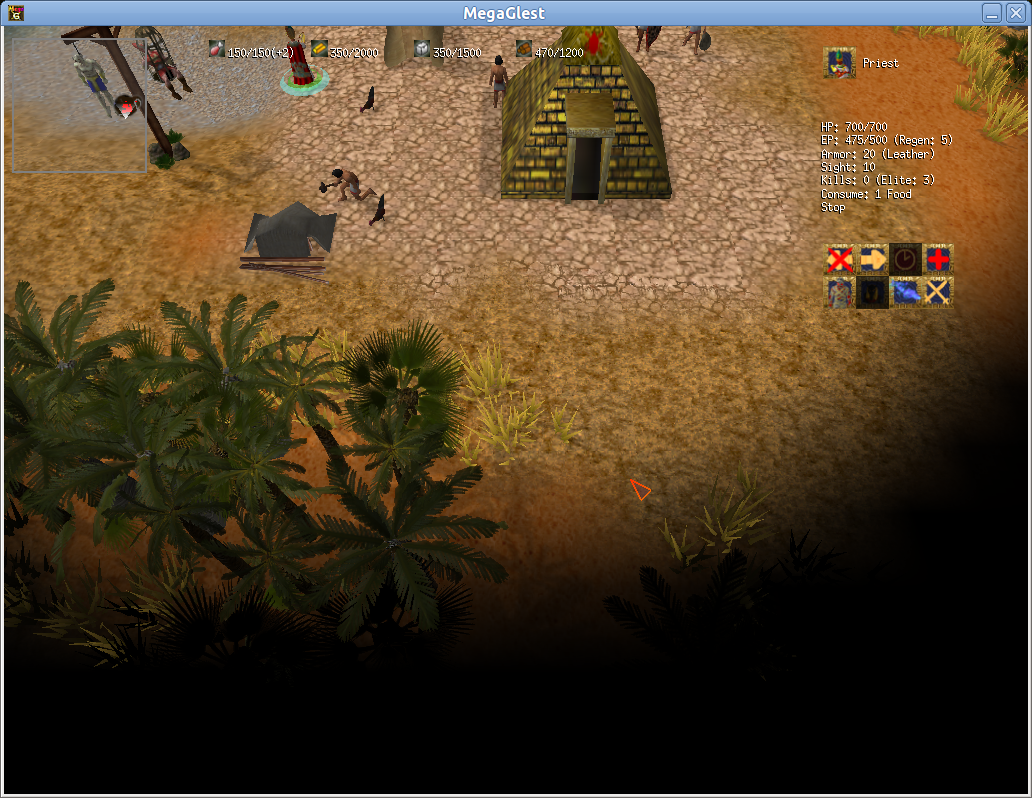
Minimum system requirements
- 1.5 GHz CPU
- 1 GB RAM
- OpenGL 1.4 supporting graphics card
- OpenAL compatible audio card
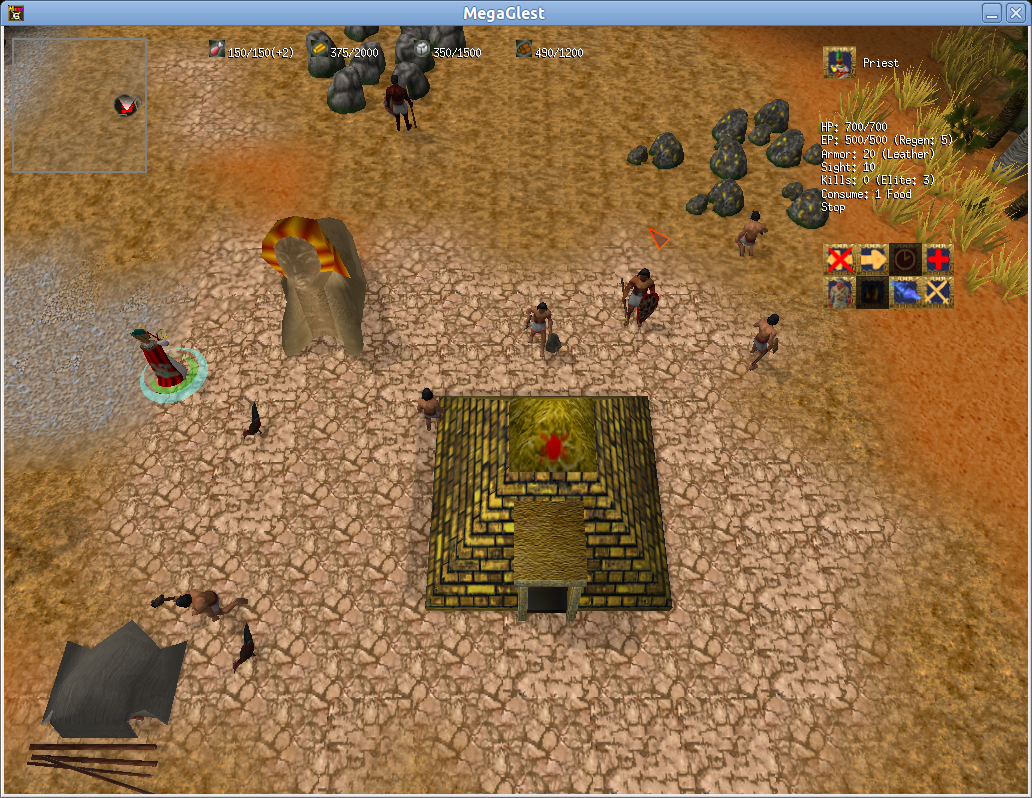
Features
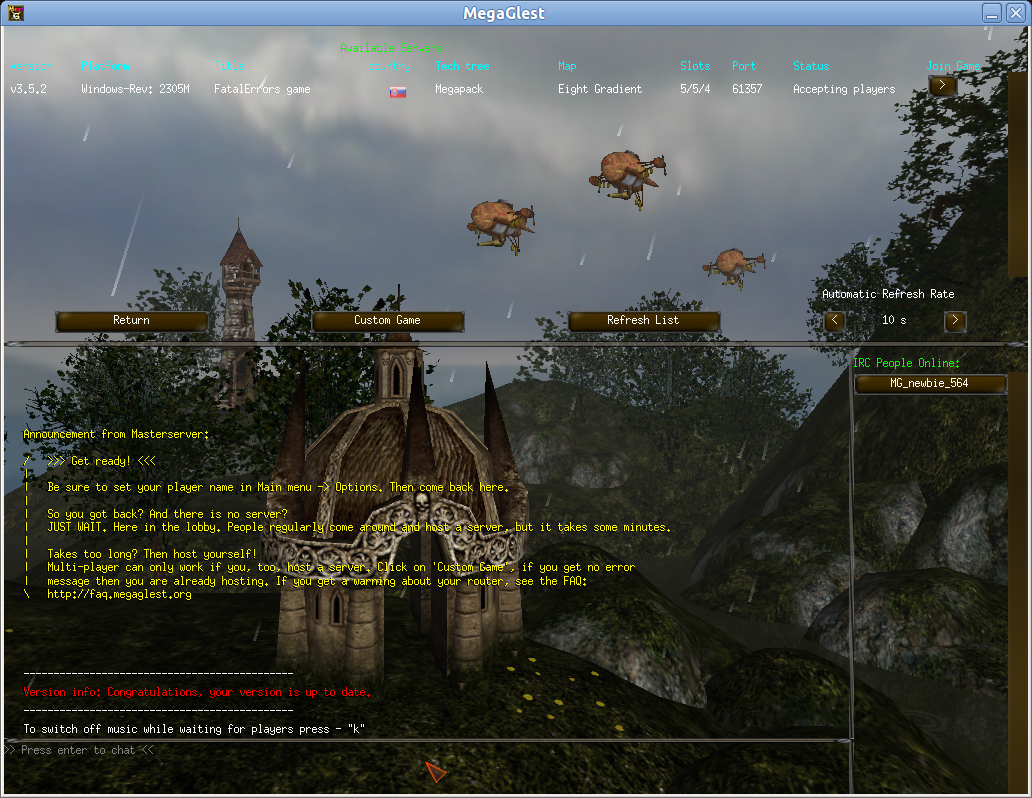
MegaGlest has support for single player (custom game or scenario) and multiplayer over Internet or LAN. Chatting is also supported.
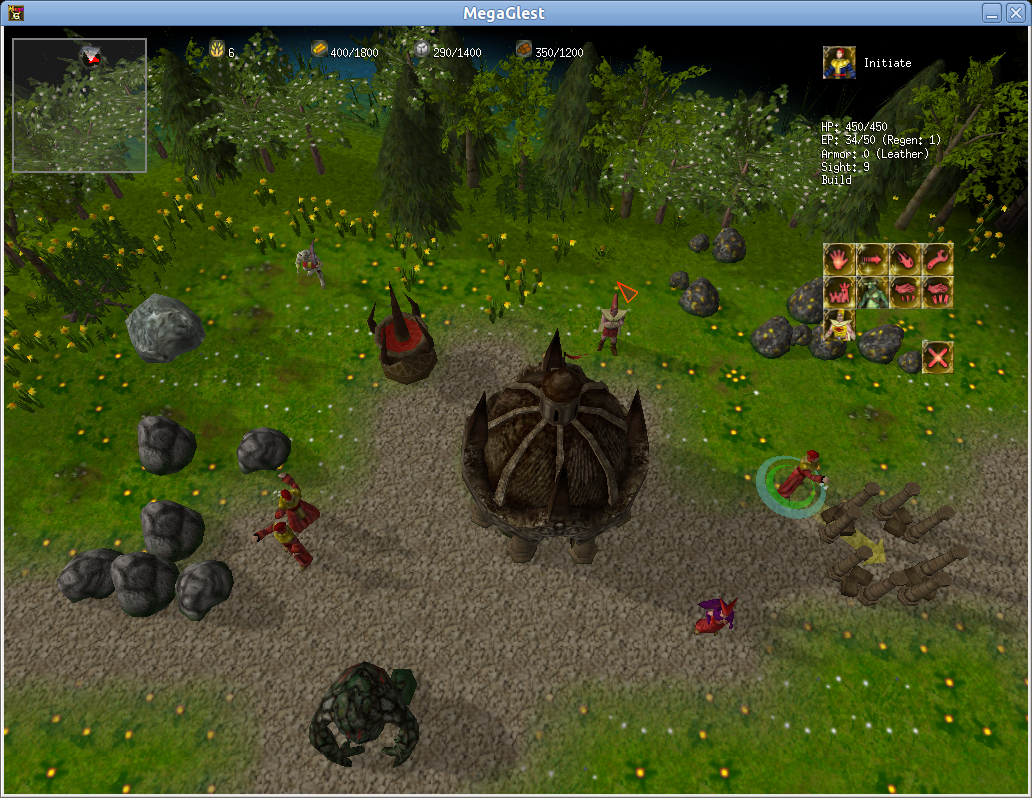
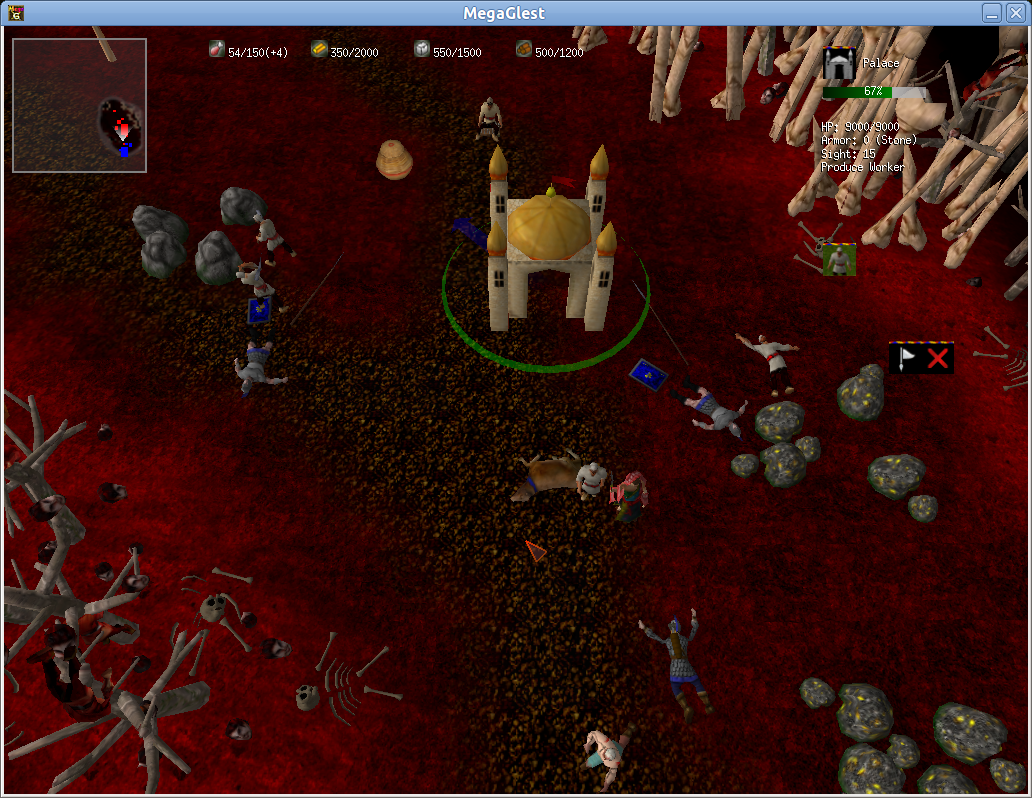
The 3D graphics engine allows to zoom in/out, rotate camera and change the 3D view angle by pressing the mouse wheel.
MegaGlest runs by default in fullscreen mode, but you can switch between fullscreen and windowed mode with the Alt+Enter keyboard shortcut.
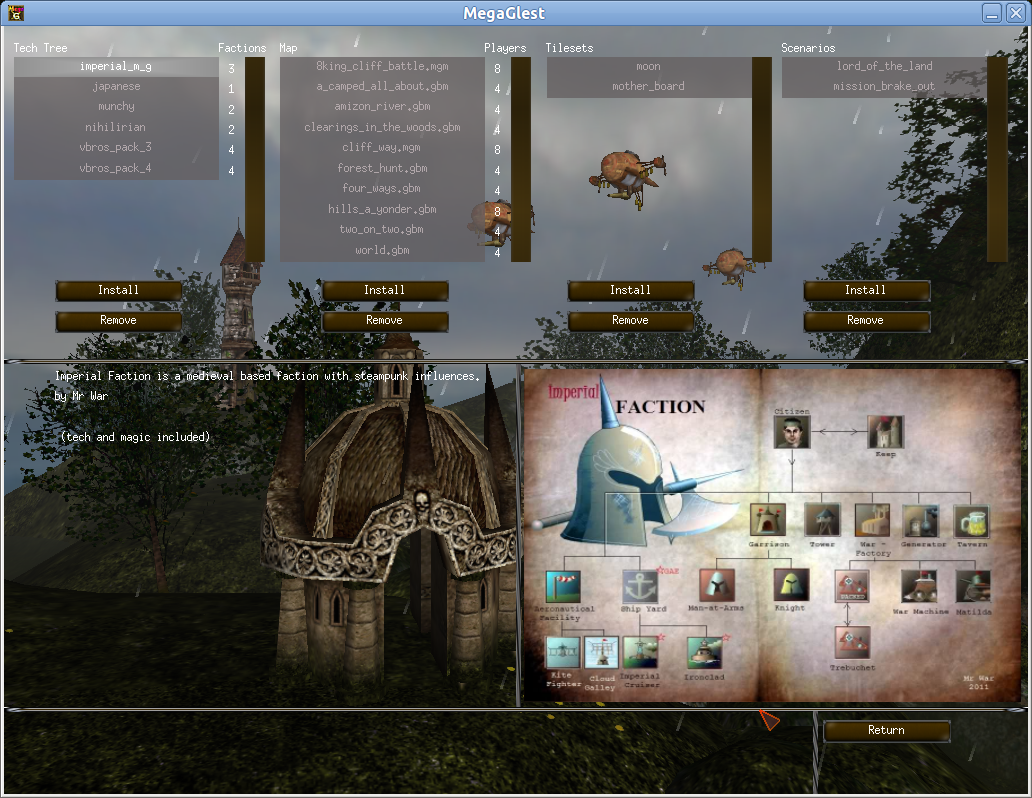
The in-game interface will show you available mods (including custom tech trees, maps, tilesets and scenarios) and offer you a button to download them directly without any hustle.
The sound part is done pretty well, including ambient sounds, unit sounds and background music.
However, one major drawback is that MegaGlest cannot save games. This shouldn’t even be called a feature, since it surely should be a must-have for any RTS game.
Installation in Ubuntu
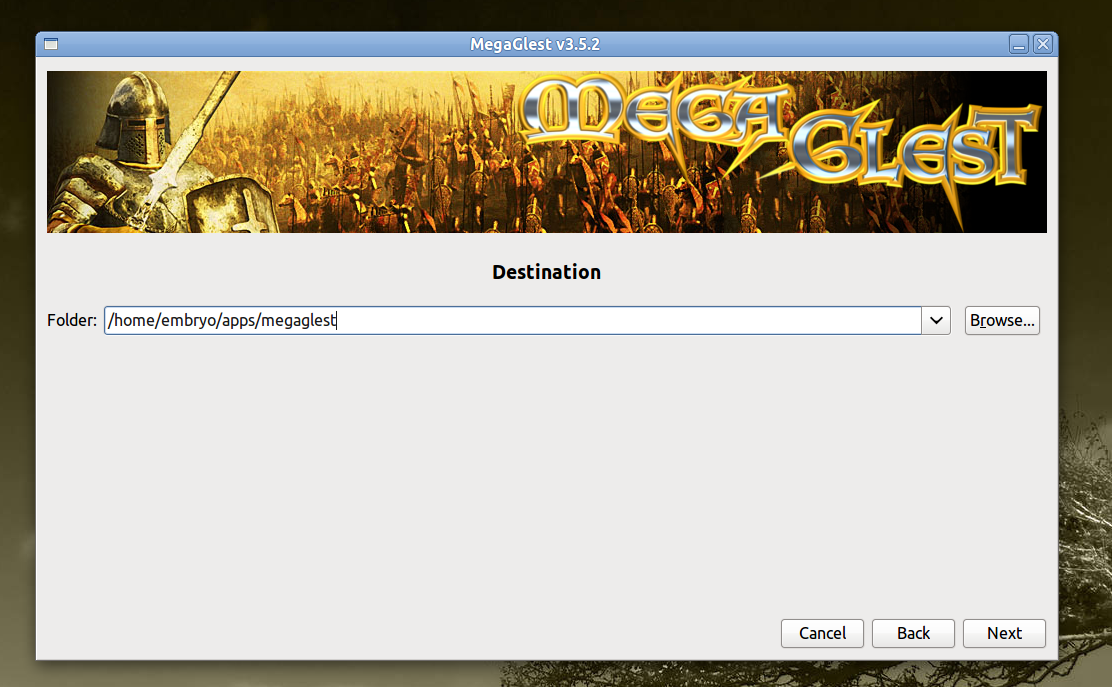
Go to the official website and download the installation script, which is called MegaGlest-Installer-3.5.2_i386_linux.run for the current version. Make it executable (chmod 755 MegaGlest-Installer-3.5.2_i386_linux.run) and run it. The graphical installer allows you to install the game as normal user in a location of your choice.
The next step is to install OpenAL. Open a terminal and type:
sudo apt-get install libopenal1
Now all you need to do is create a symlink (shortcut) to point to the libopenal.so.1 file. To do this, type in a terminal:
sudo ln -s /usr/lib/libopenal.so.1 /usr/lib/libopenal.so.0
You will need to provide your password. Now just run MegaGlest by changing the working directory to where you installed it and typing ./megaglest.
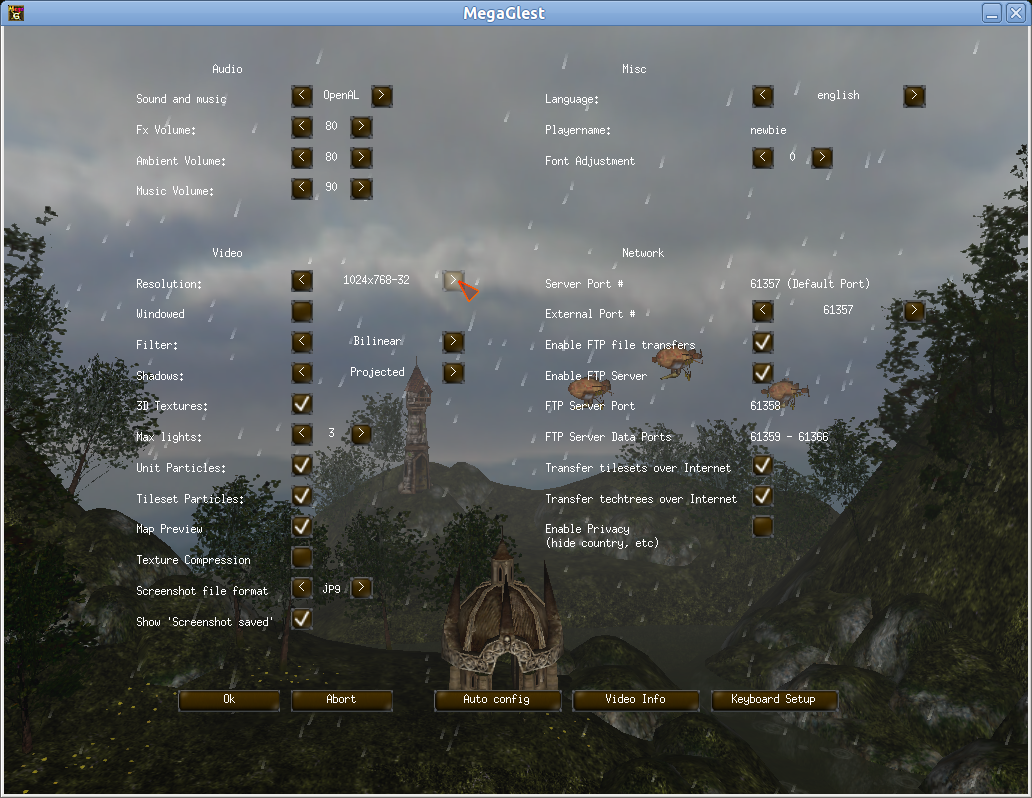
Settings menu
Graphical installer
[…] Read more at TuxArena […]
