
Ubuntu/Debian/Mint news and tutorials | Linux stuff
feed.png
Quick Tip #1
Disable Overlay Scrollbars in GNOME
For Ubuntu 12.10, open a terminal and type the following command:
gsettings set com.canonical.desktop.interface scrollbar-mode normal
Changes should occur instantly. The overlay scrollbars should now be replaced with normal scrollbars.

For Ubuntu 12.04, use the following command:
gsettings set org.gnome.desktop.interface ubuntu-overlay-scrollbars false
Log out and log back in for changes to occur.
Quick Tip #2
Mount an ISO Image from Command-Line
sudo mount -o loop /path/to/image.iso /path/to/empty/dir
Notice that /path/to/empty/dir must exist and should be empty.
Quick Tip #3
Find Out Current GNOME Version
For GNOME:
gnome-shell --version
For the Compiz window manager, use:
compiz --version

The Alt+F2 keyboard shortcut, used to bring up the run launcher in GNOME, is disabled by default in GNOME 3. To have it back, follow these steps:

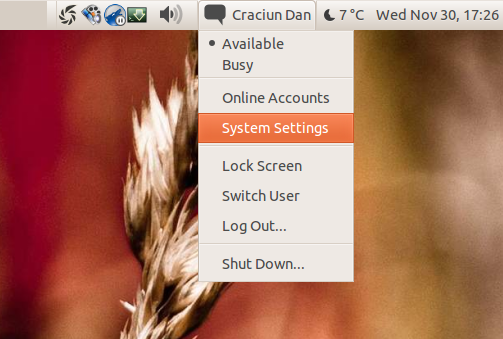
1. Start up System Settings – click on your username in the top panel and then click on System Settings entry in the menu that appears:
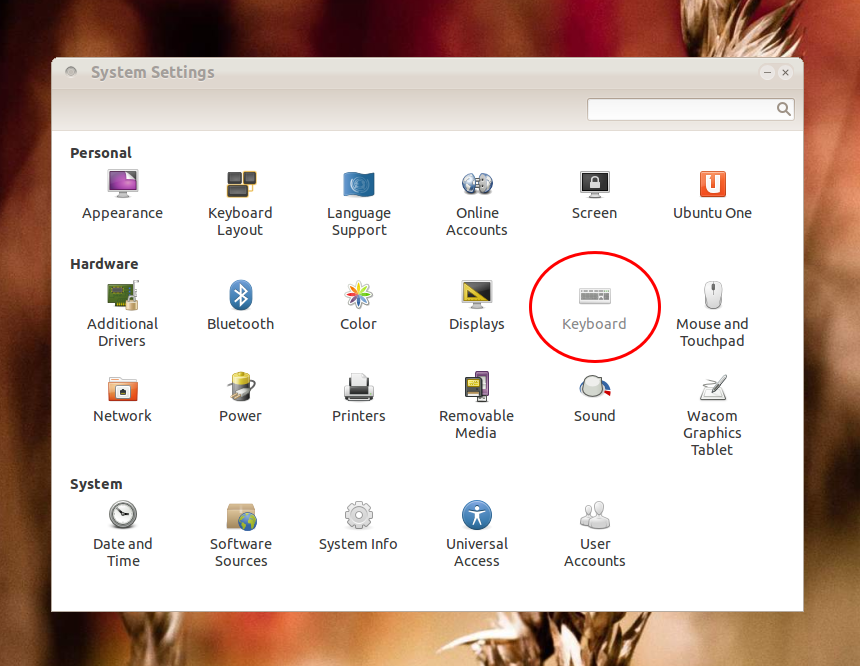
2. In System Settings, click on the Keyboard category:
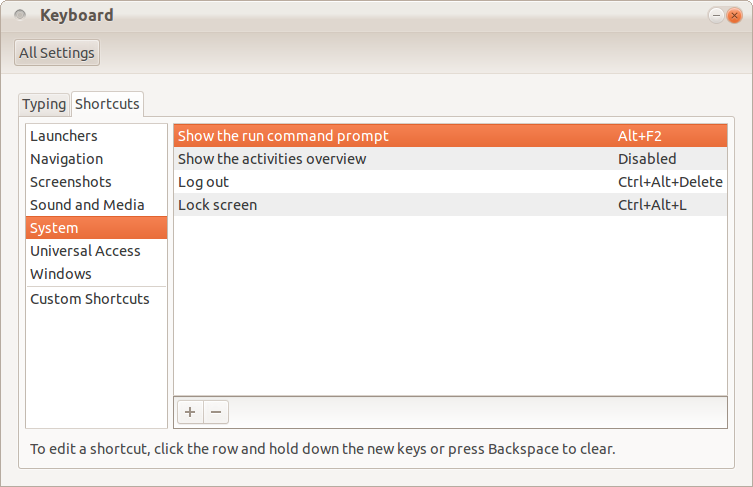
3. In the window that appears, click on the Shortcuts tab and then click on System in the left list:
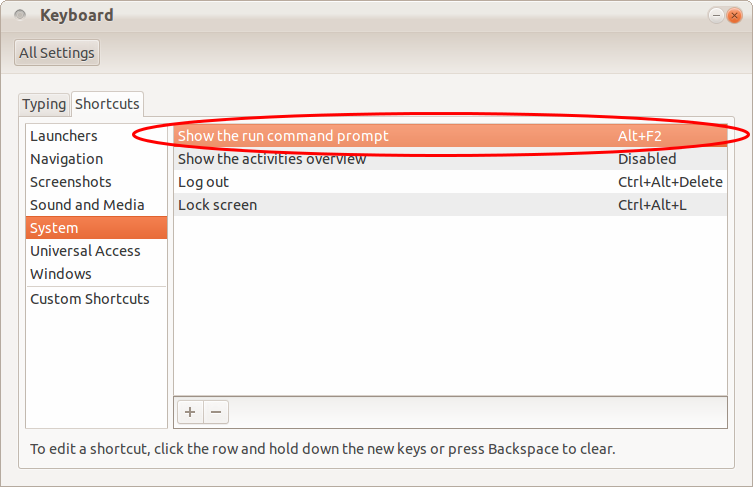
4. Click on the Disabled text to the right of Show the run command prompt, and press Alt+F2 (or any other convenient combination):
5. That’s it! Pressing Alt+F2 to bring the run box should work properly now.

Leave a Comment

Sponsors
Advertise on TuxArena
Online Readers